•
Cembra Mastercard Gold


Before you can use the Smart Chip, a little bit of preparation is needed. You need the Smart Chip App, an account and a supported payment card (if you want to use the payment function).
1.1
You need a Smart Chip account to use your Smart Chip. Here’s everything you need.
1.1
Your Smart Chip is managed through the Smart Chip App. It is available for iOS and Android.
Download it here if you haven’t already:


1.1
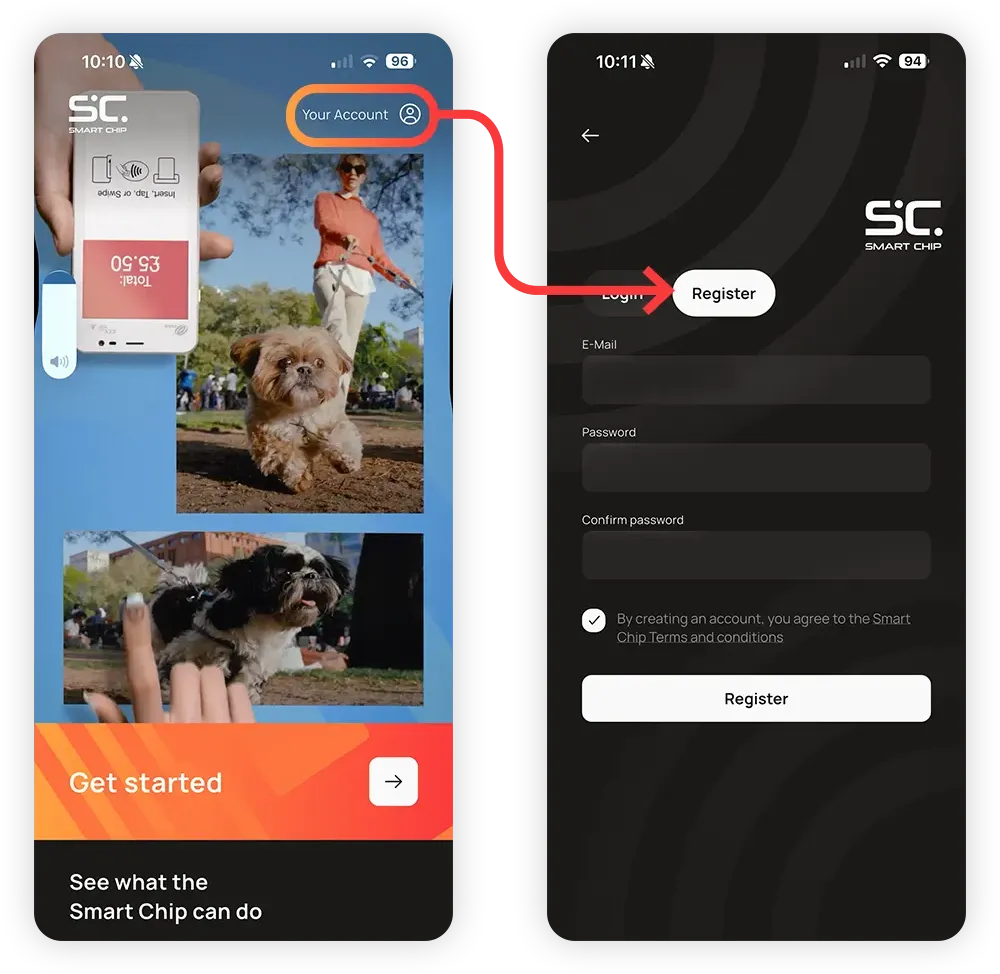
The fastest way is to tap Your Account in the top right, then Register.
1.1
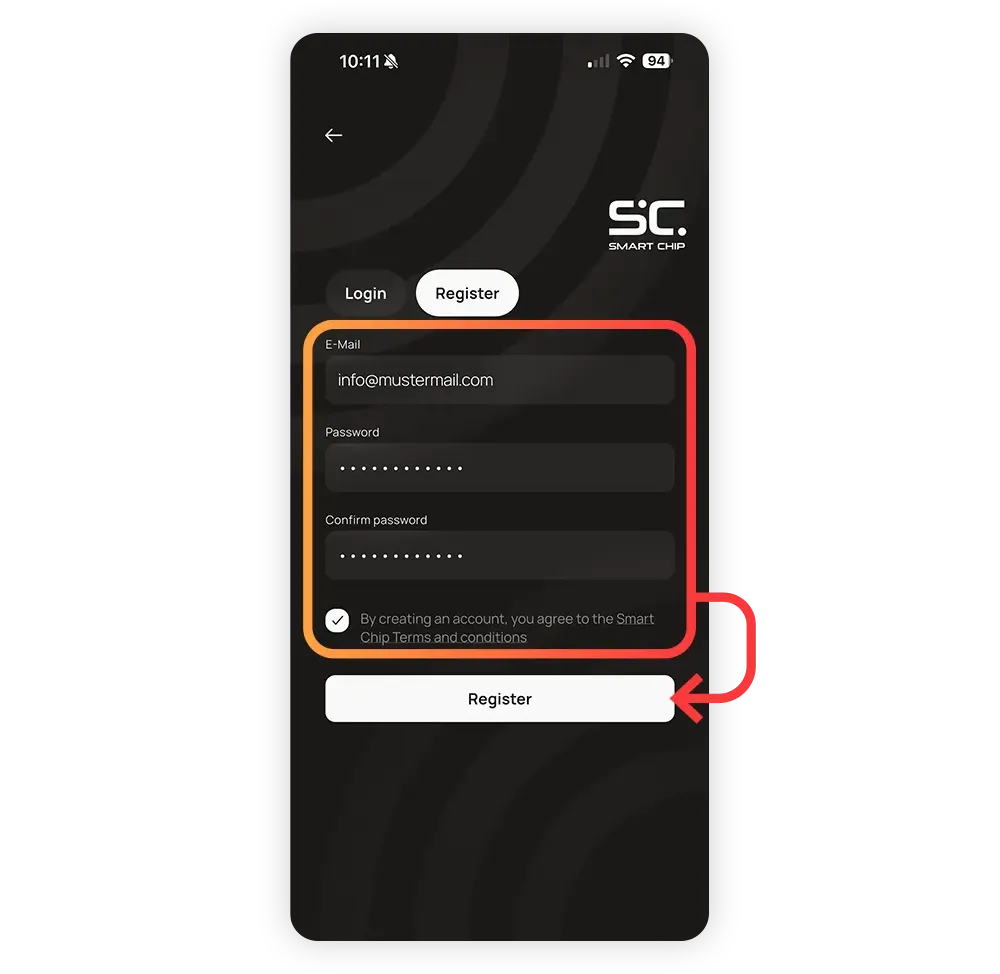
Fill in your email and the password of your choice.
Agree to the terms and conditions and tap Register.
1.1
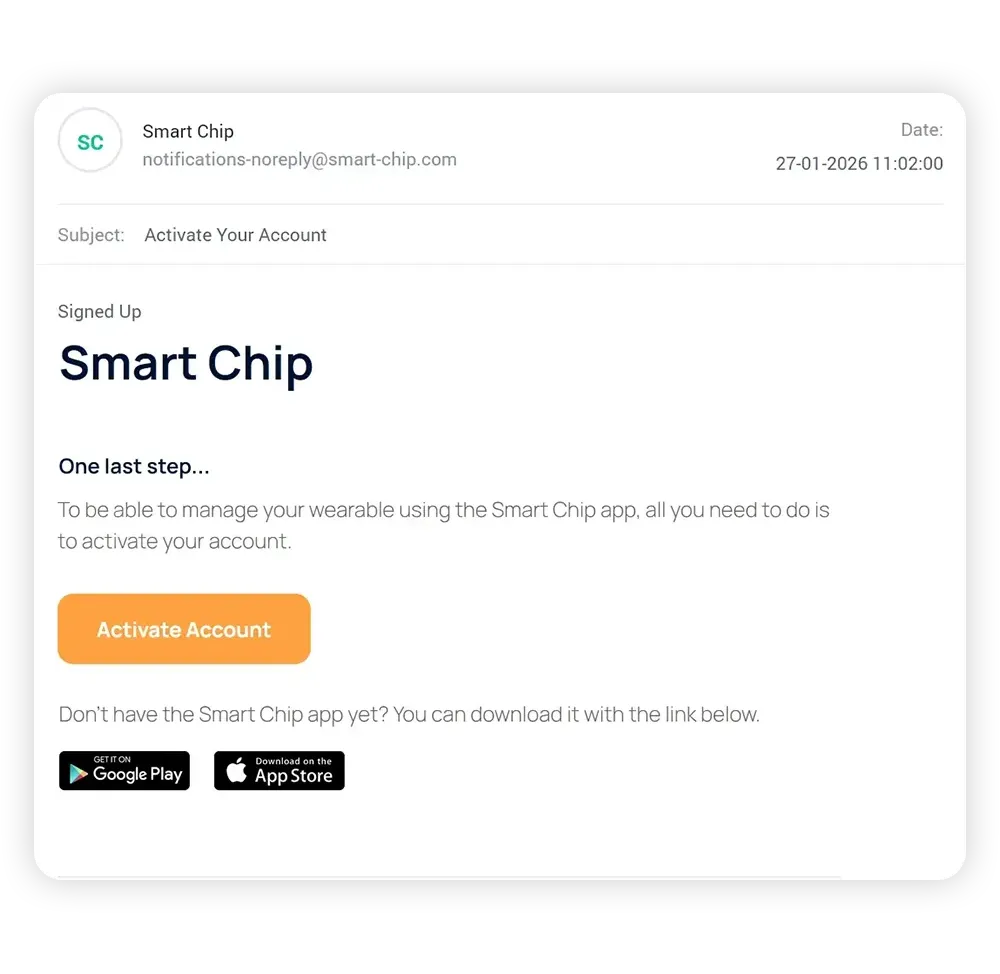
After tapping Register, an email is sent to your address. This is a safety feature to prevent misuse of email adresses.
Open the email and tap Activate Account. The account is now ready to use.
1.1
Back in the Smart Chip app, tap on Login or Your Account in the top right.
Enter your email and password, and tap Login.
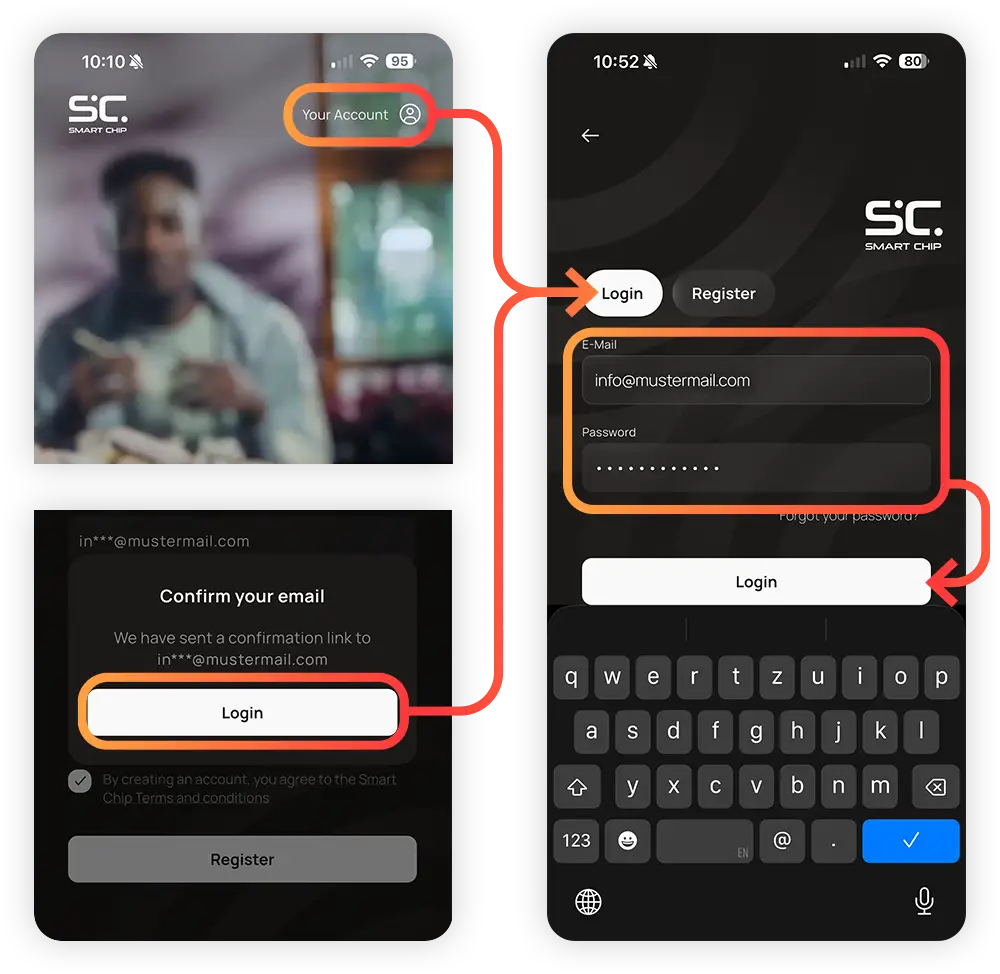
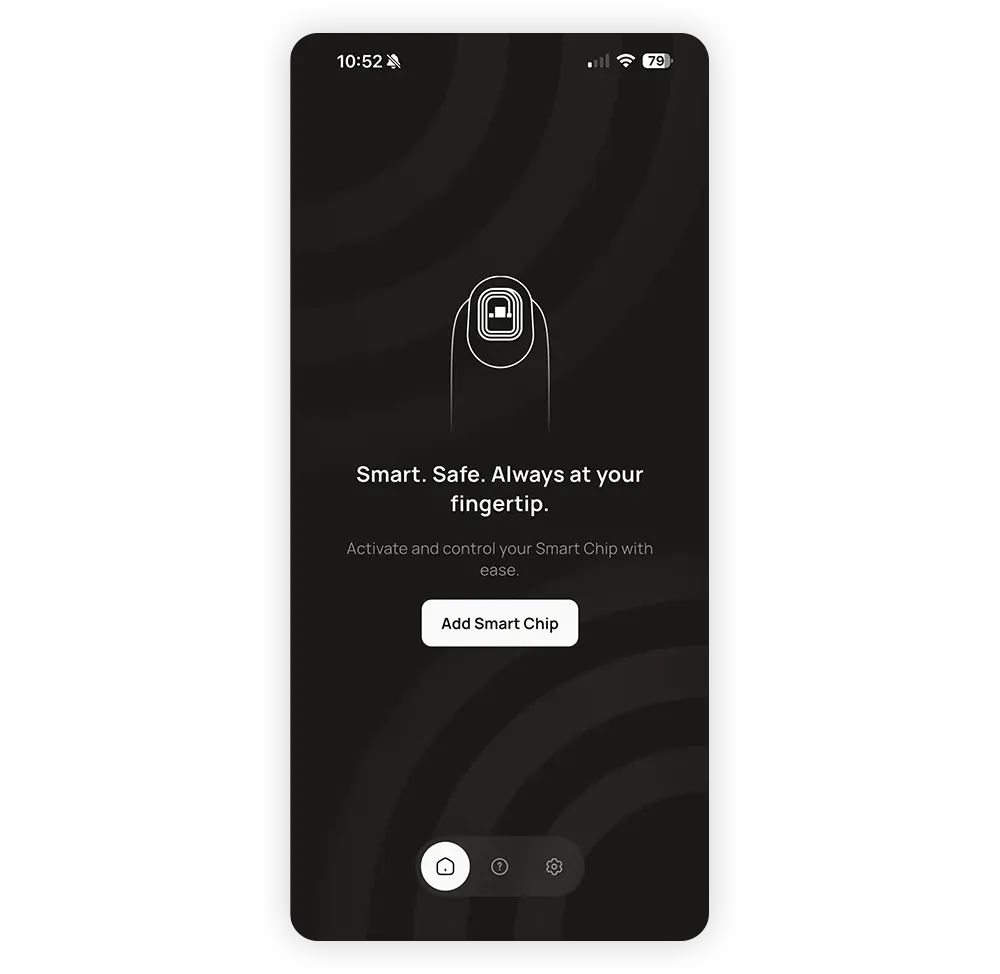
That’s all the steps to create and activate your Smart Chip account. If you see this screen, you are ready to activate your first Smart Chip.
1.2
With a working account we can add a Smart Chip.
1.2
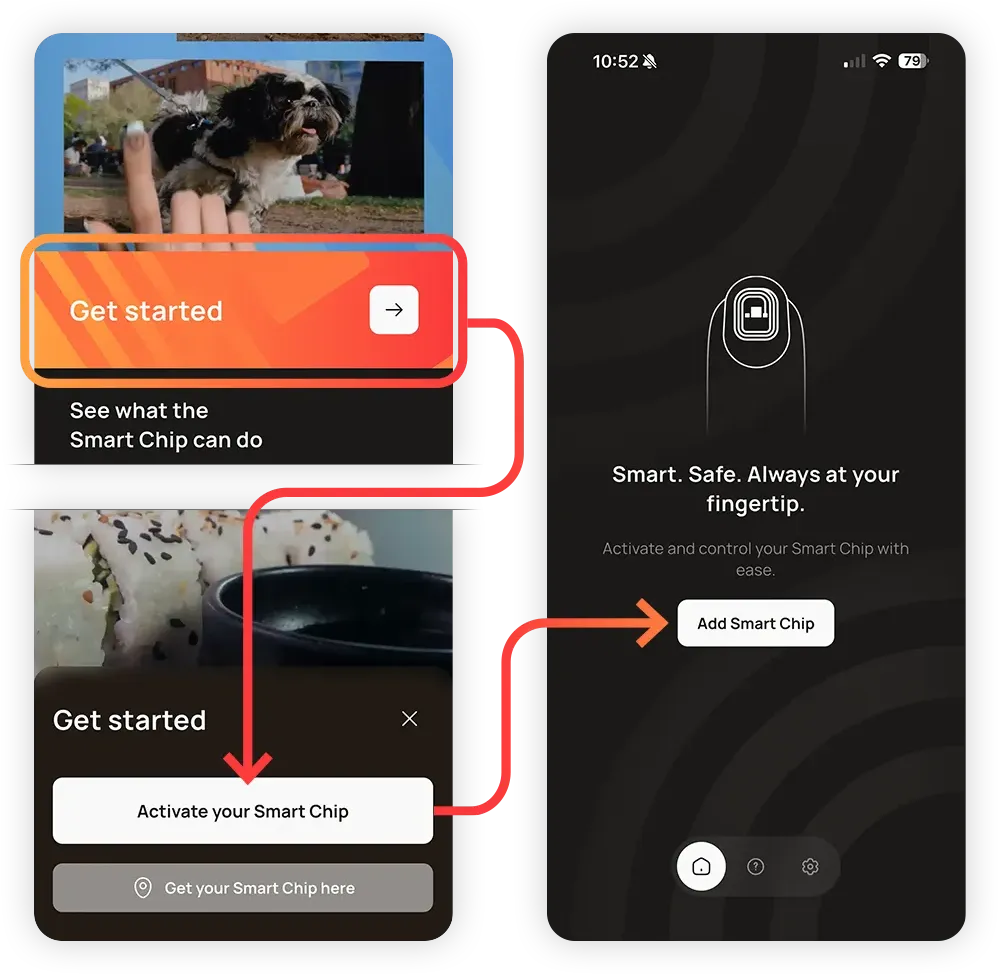
Make sure that you are logged into your Smart Chip account. Tap Get Started, then Activate your Smart Chip. If you land on the screen to the right, you’re good to go.
If you land on the Login/Register screen, you have to login or create an account first.
1.2
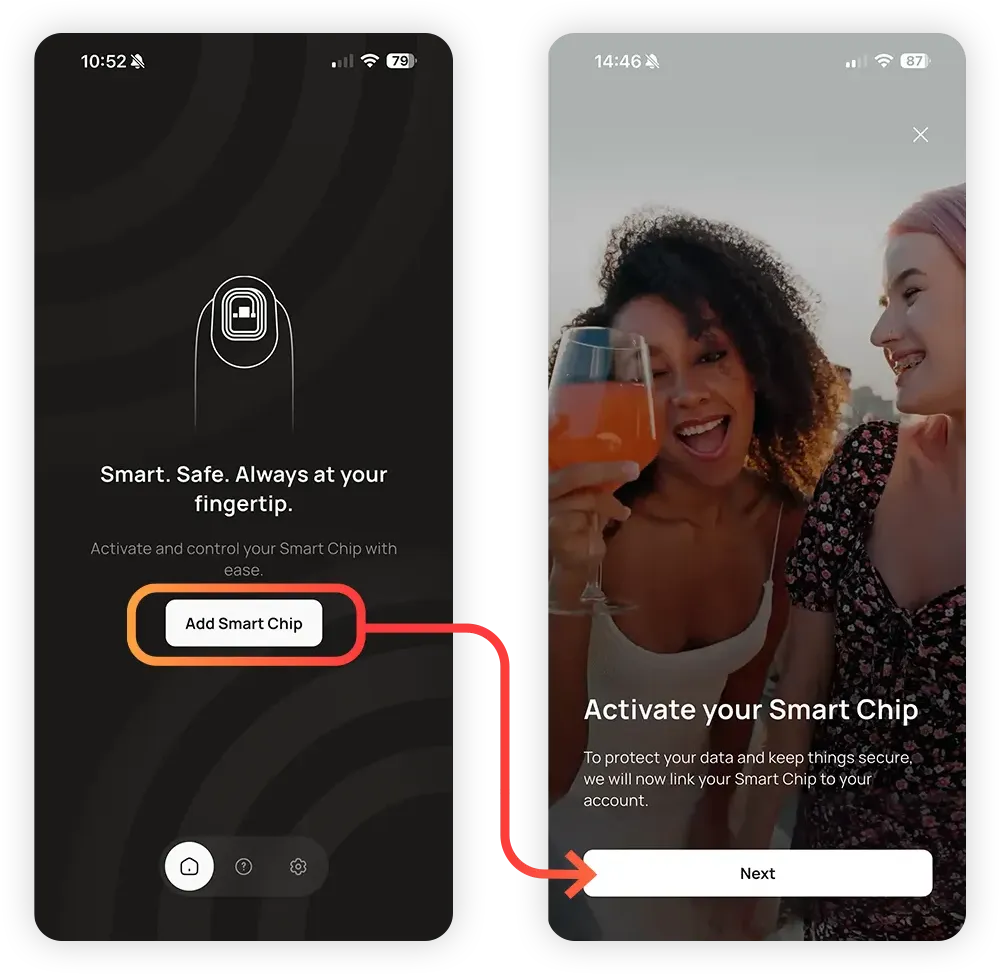
Tap Add Smart Chip, then Next.
1.2
The Smart Chip uses your phone’s NFC reader to make a connection and activate. To do this, it has to be held close to the reader.
The animation on the screen shows the position of the reader depending on your device.
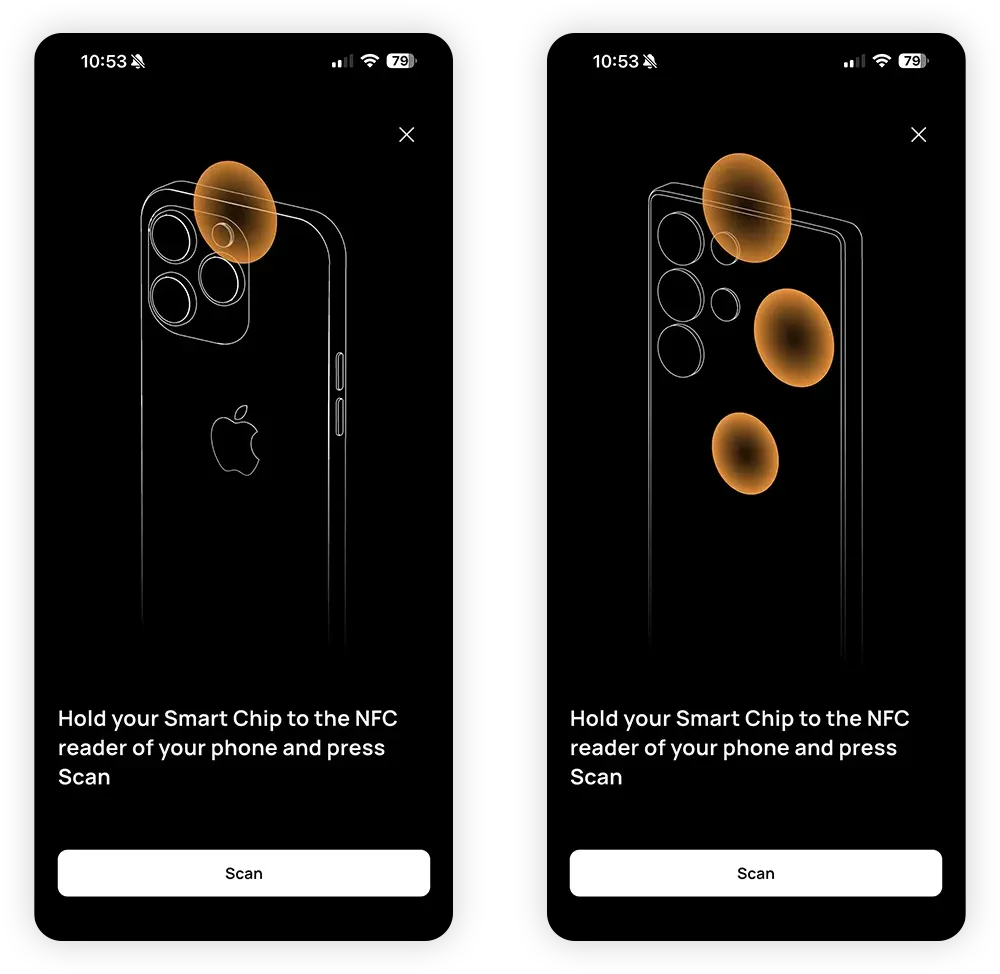
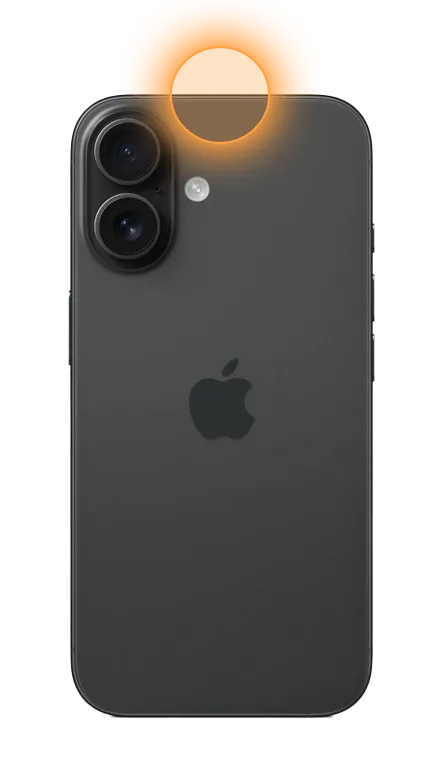
On Apple devices, the NFC reader is located at the top of the device.
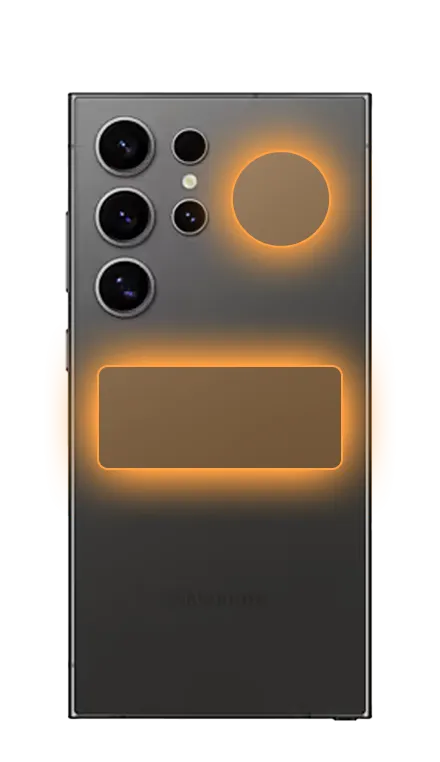
On Android devices, the NFC reader is most commonly located at the back next to the camera or in the middle of the device.
1.2
Tap Scan.
Hold the Smart Chip to the NFC reader of the phone. You might have to move it around slowly until you have found the correct position.
If you have trouble connecting and the phone uses a thicker case, try removing it.
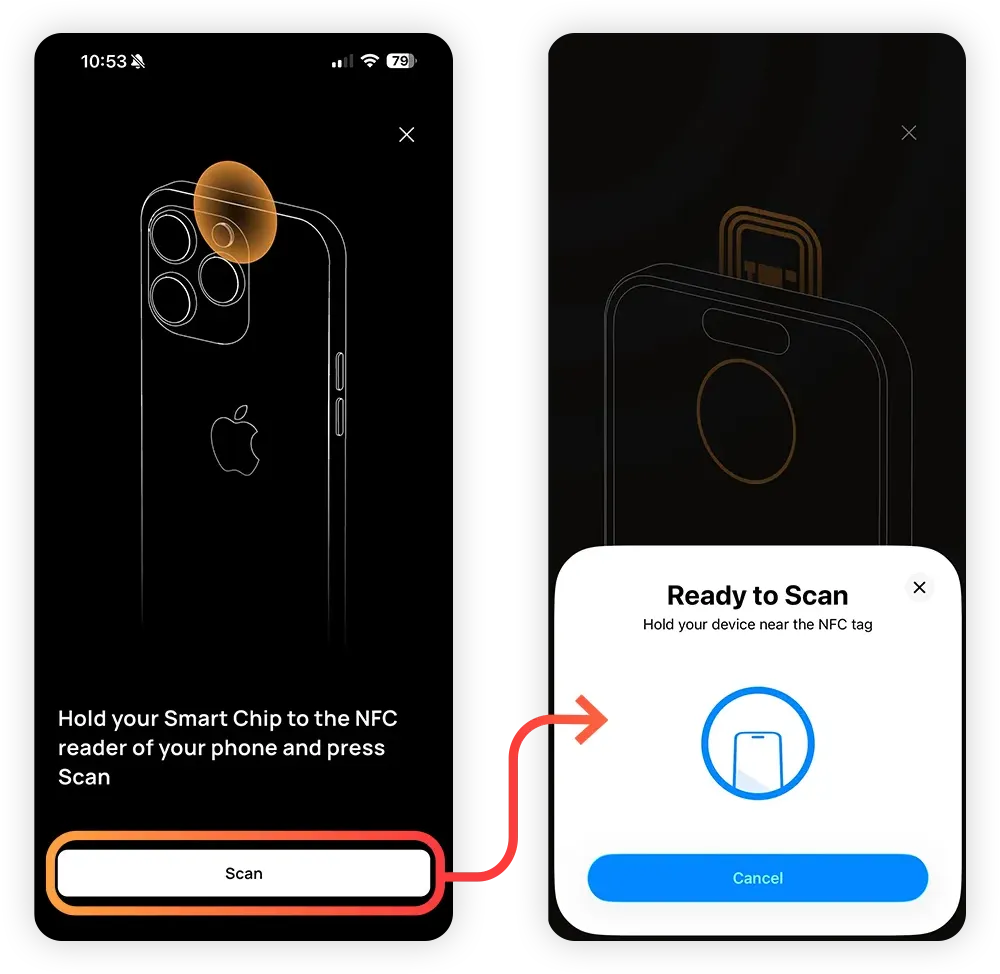
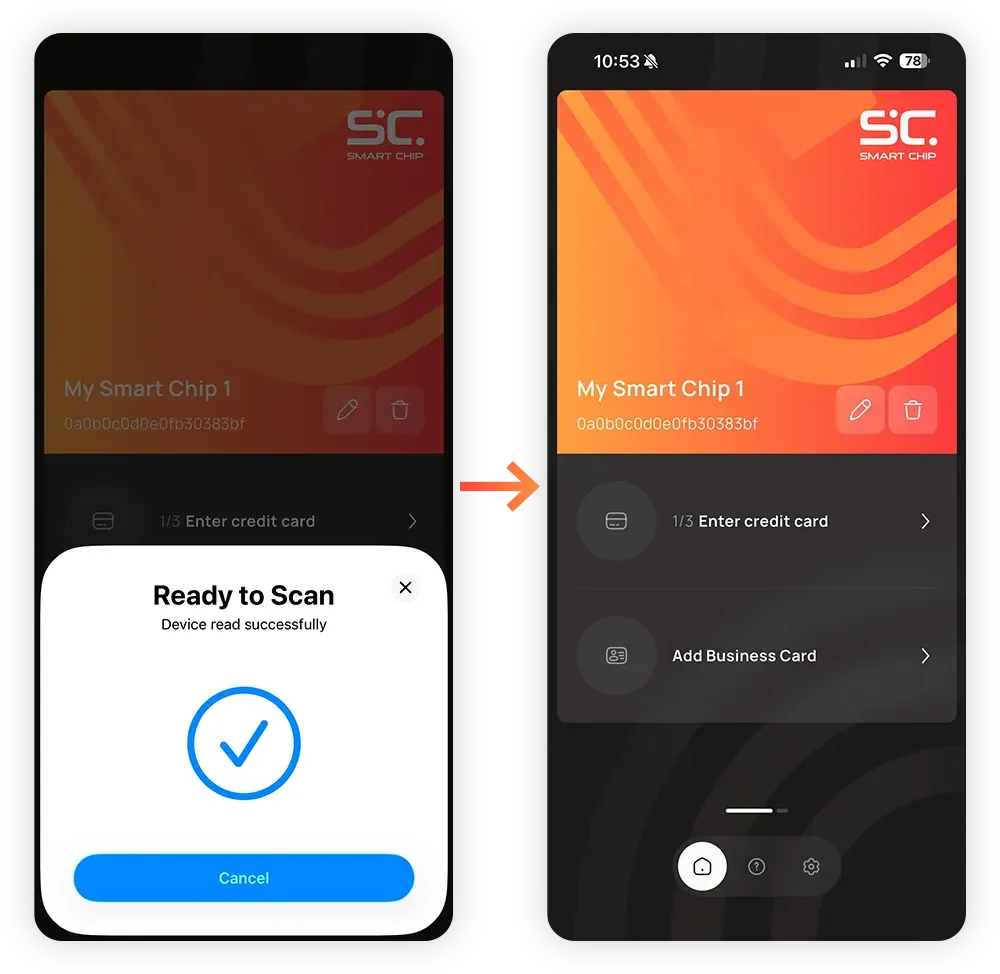
As soon as the Smart Chip is held to the correct place, it connects and you are redirected to the Home Screen.
The Smart Chip is now ready to use.
1.3
We are now connecting your payment card to your Smart Chip.
Your card data will be encrypted and sent to the Smart Chip, then deleted from the app. The Smart Chip follows the highest security standards to ensure the safety and privacy of your data.
1.3
Tap 1/3 Enter credit card, then Next.
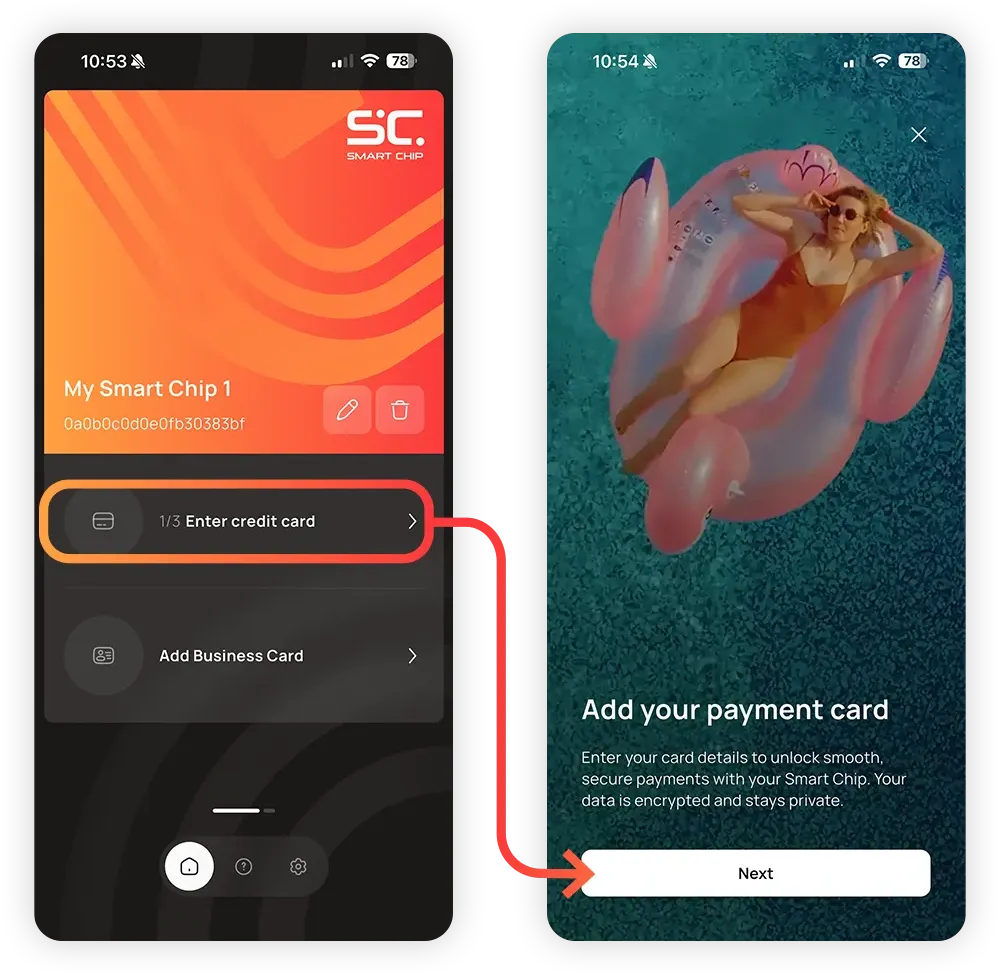
1.3
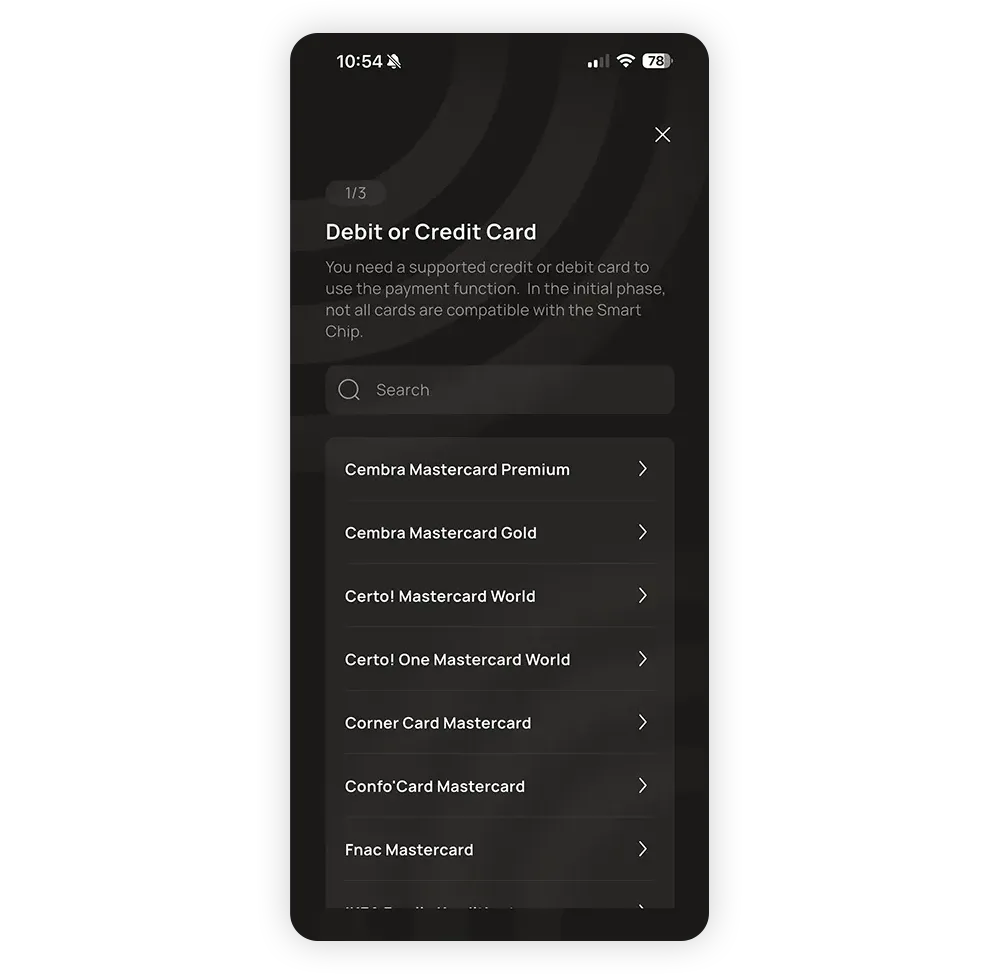
Select your card from the list. If your card is not listed, it is unfortunately not supported yet.
Cembra Mastercard Gold
Cembra Mastercard Premium
Certo! Mastercard World
Certo! One Mastercard World
Confo’Card Mastercard
Corner Card Mastercard
Curve
Fnac Mastercard
IKEA Family Kreditkarte
LIPO Mastercard
PostFinance
SPAR Mastercard World
Swiss Bankers Life Digital
TCS Member Mastercard
TCS Travel Mastercard Gold
1.3
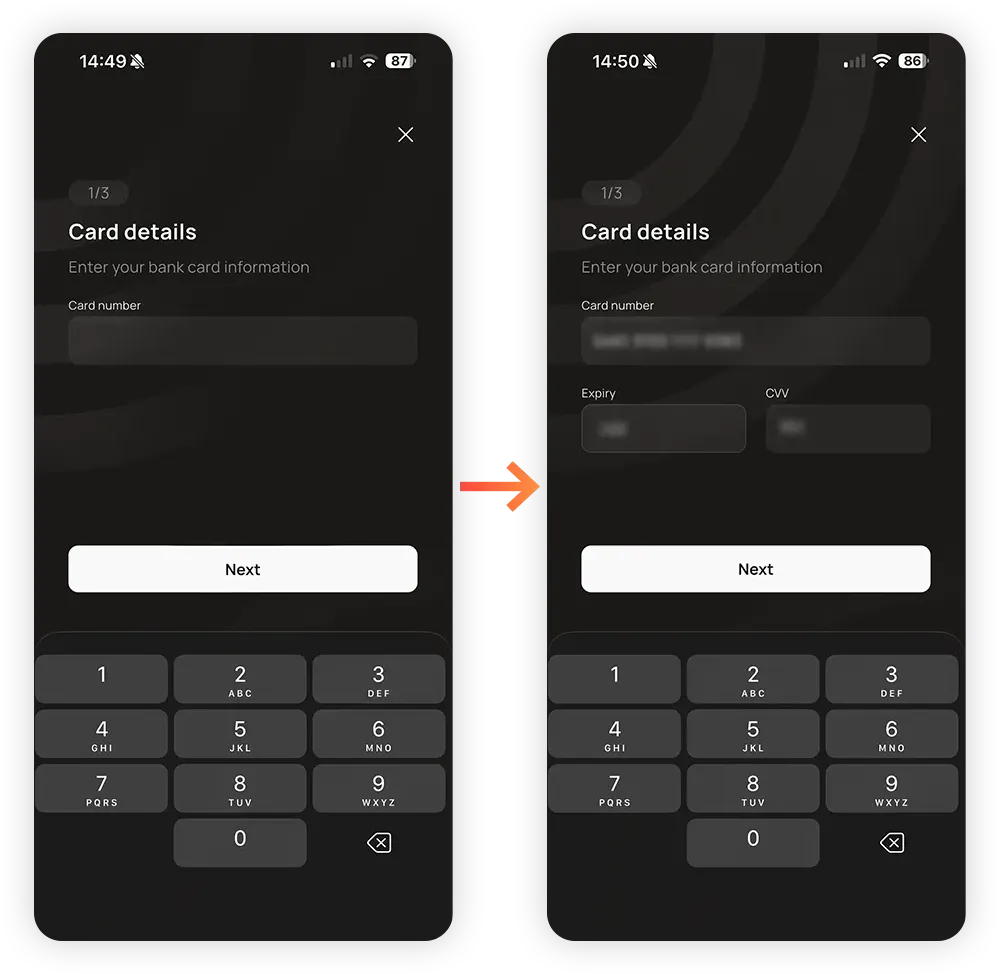
Enter your card details: The card number, the expiry date and the CVV.
Tap Next when you’re done.
1.3
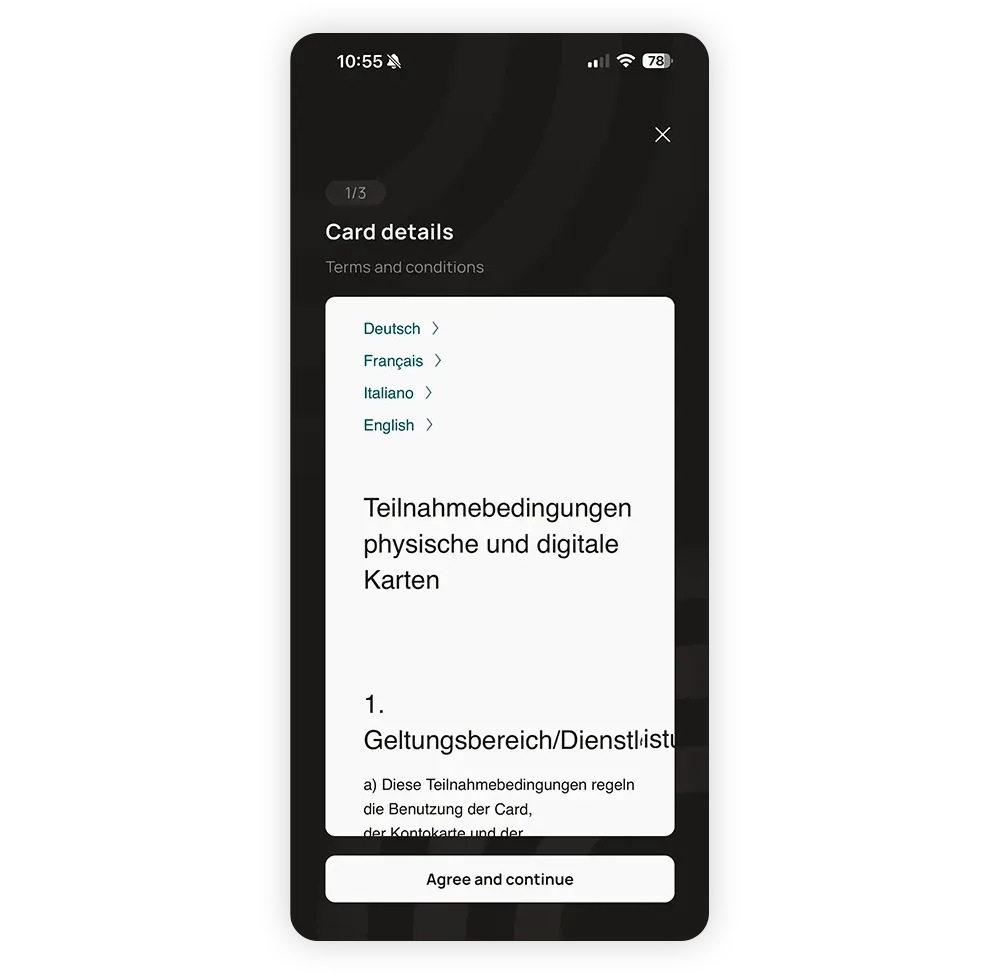
You will be shown the terms and conditions of your bank. If you agree, tap Agree and continue.
1.3
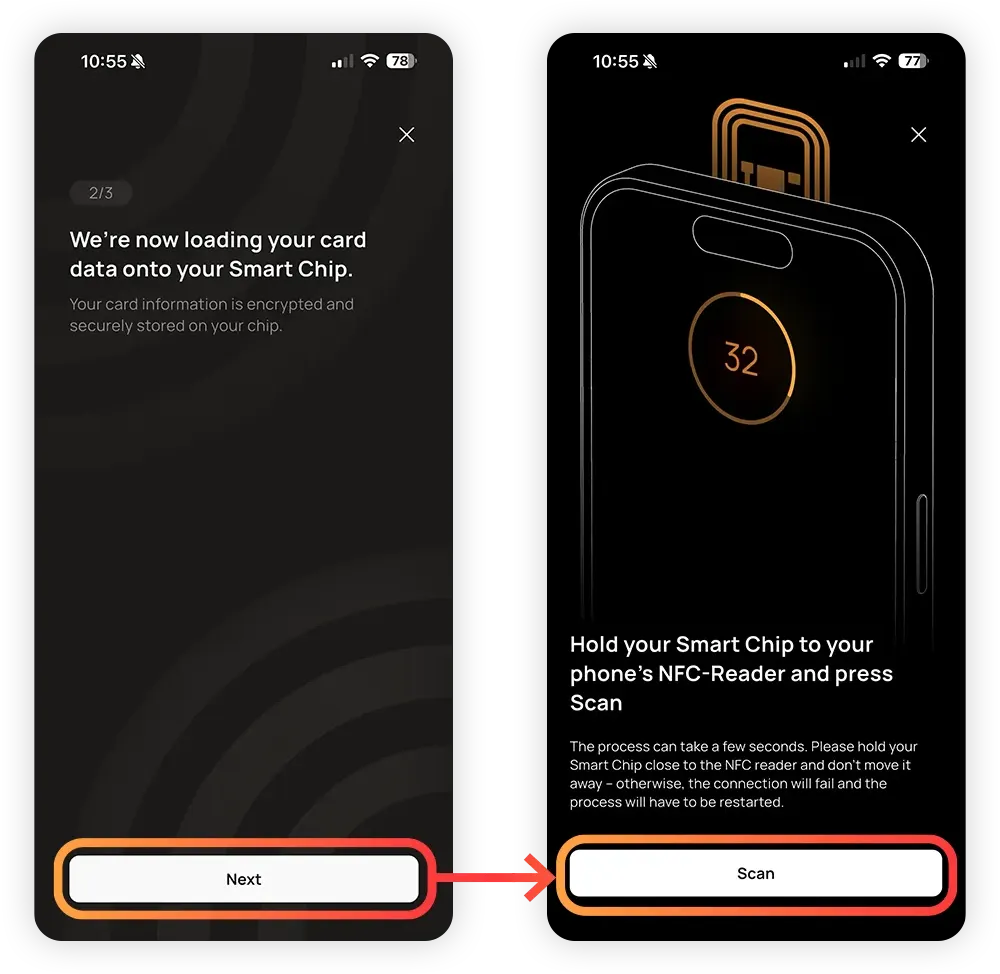
We are now encrypting your card data and sending it to the Smart Chip.
Tap Next, then Scan.
1.3
This process works exactly like the initial activation of the Smart Chip. The only difference is that it takes longer.
Hold the Smart Chip to the NFC reader of the smartphone until the process begins.
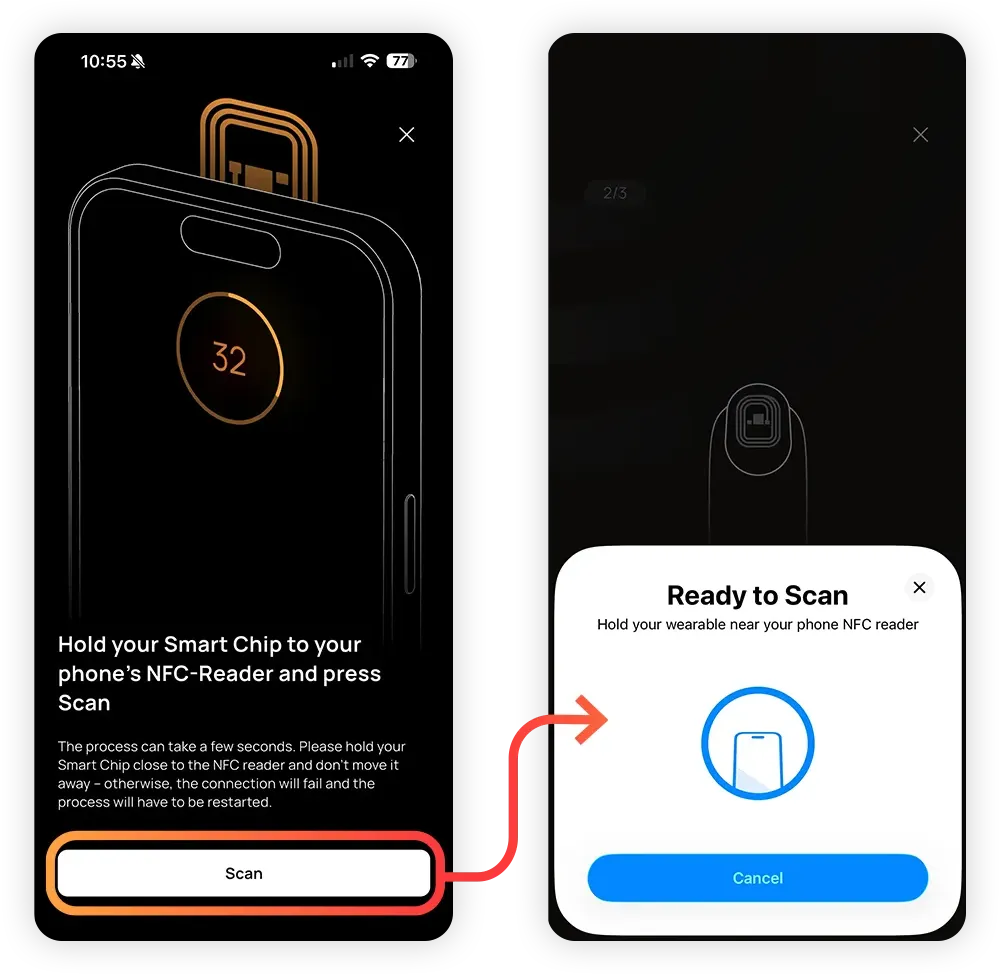
1.3
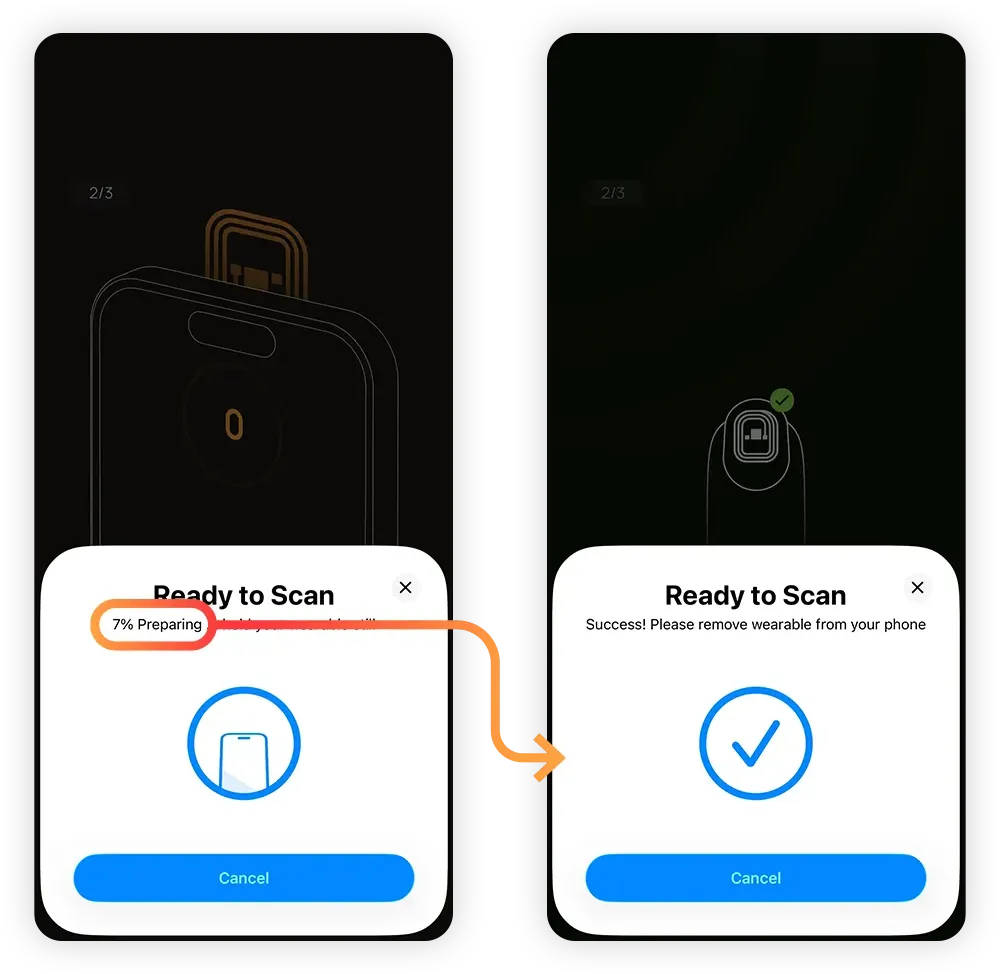
As soon as the process starts, do not move the Smart Chip!
The data is now being transferred, which takes a few seconds. If you move the Smart Chip, the connection will break.
Wait until the process is finished.
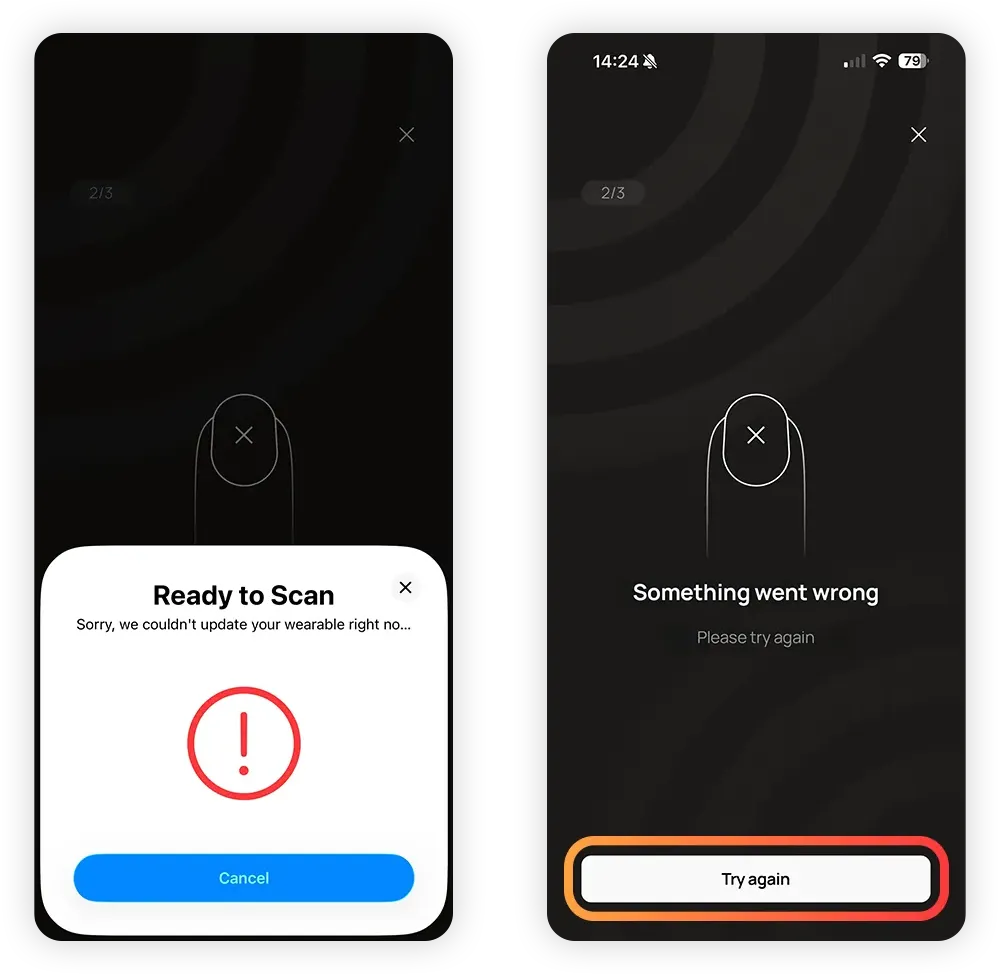
If the process is interrupted, simply tap Try again.
In rare cases, the process may no longer start if it has been interrupted too often. If this happens, completely delete the Smart Chip from the home screen and reconnect it. Then start again from the beginning with the payment card. Make sure you hold the Smart Chip very still against the NFC reader and do not move it as soon as the process starts.
1.3
To activate contactless payment with your card, the function must first be approved by your bank. This is a security feature to protect your card.
Depending on your bank, this can be done via SMS code, phone call, or the bank’s app. The Smart Chip app will display all available options and lead you through the process.
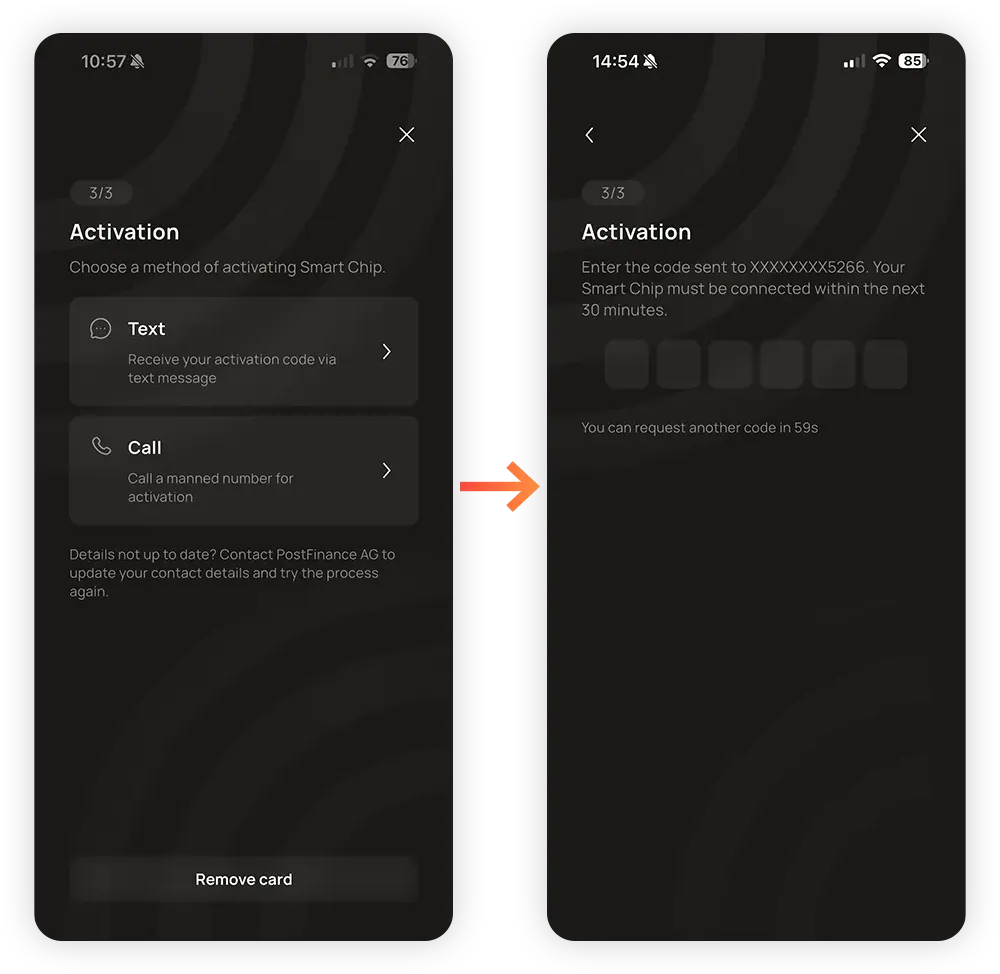
After you have activated the payment card, it is now connected and the Smart Chip is ready for contactless payment.
You can now tap Finish to get back to the home screen or Set up Business Card to go on to the business card function.
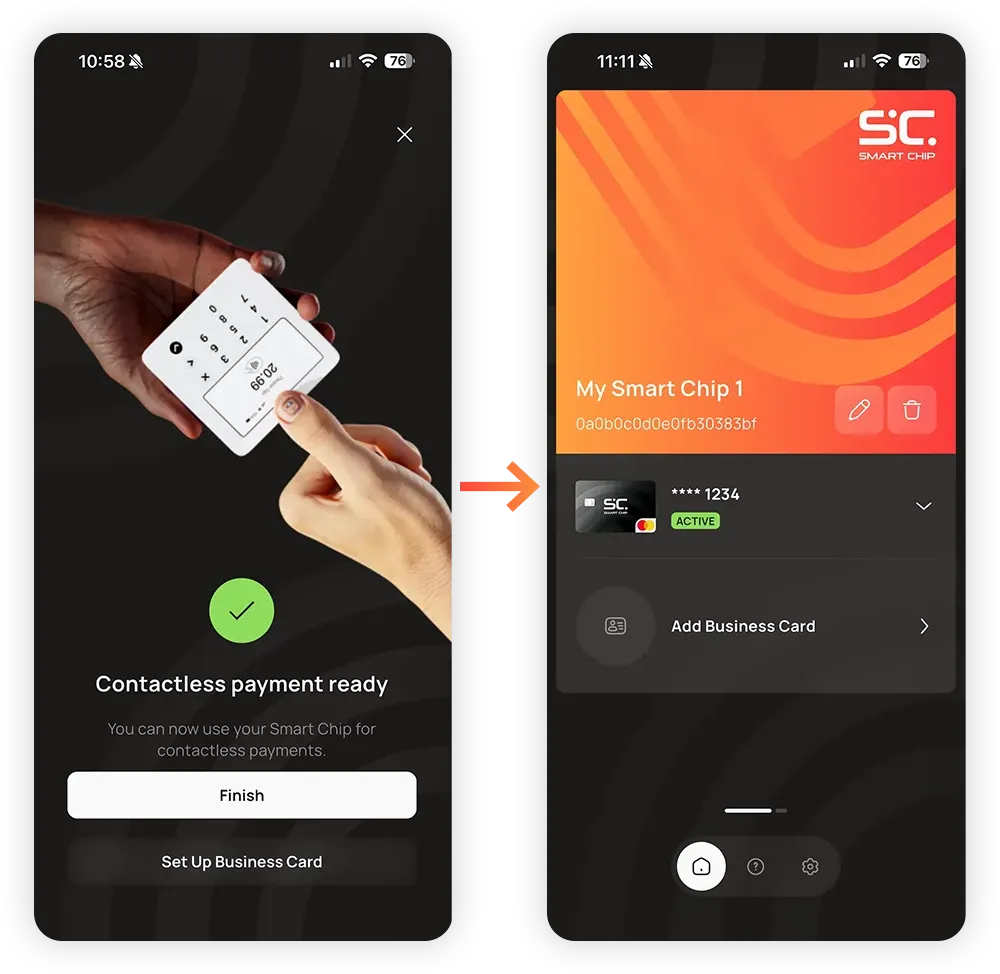
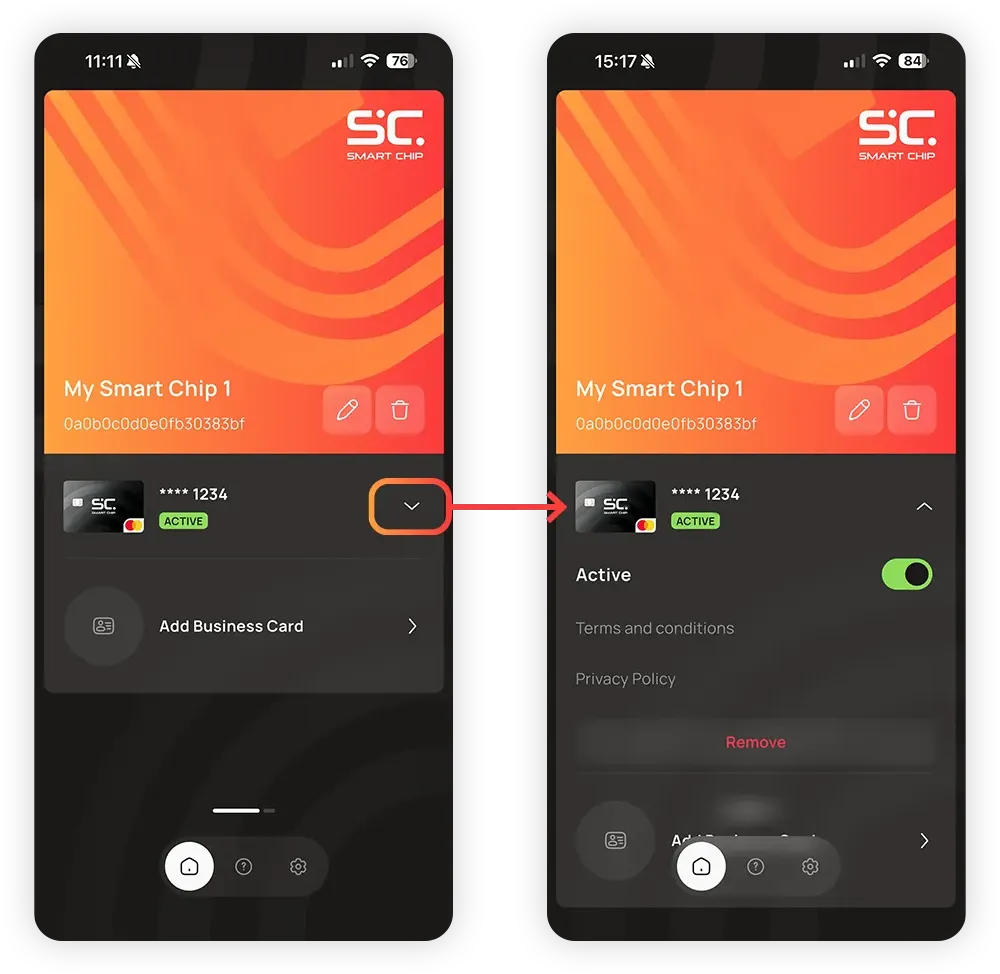
1.3
Your payment card is shown on the home screen. Tapping the arrow opens the card and shows a few options:
Active: The slider can be used to temporarily deactivate the card.
Remove: This completely removes the card from the Smart Chip. It or another card can be added again at any time.
1.4
Add a business card to your Smart Chip for fast, easy sharing of your contact details. You can share your name, phone number, email, business information and Social Media accounts.
You don’t have to fill out everything; just what you want to share.
1.4
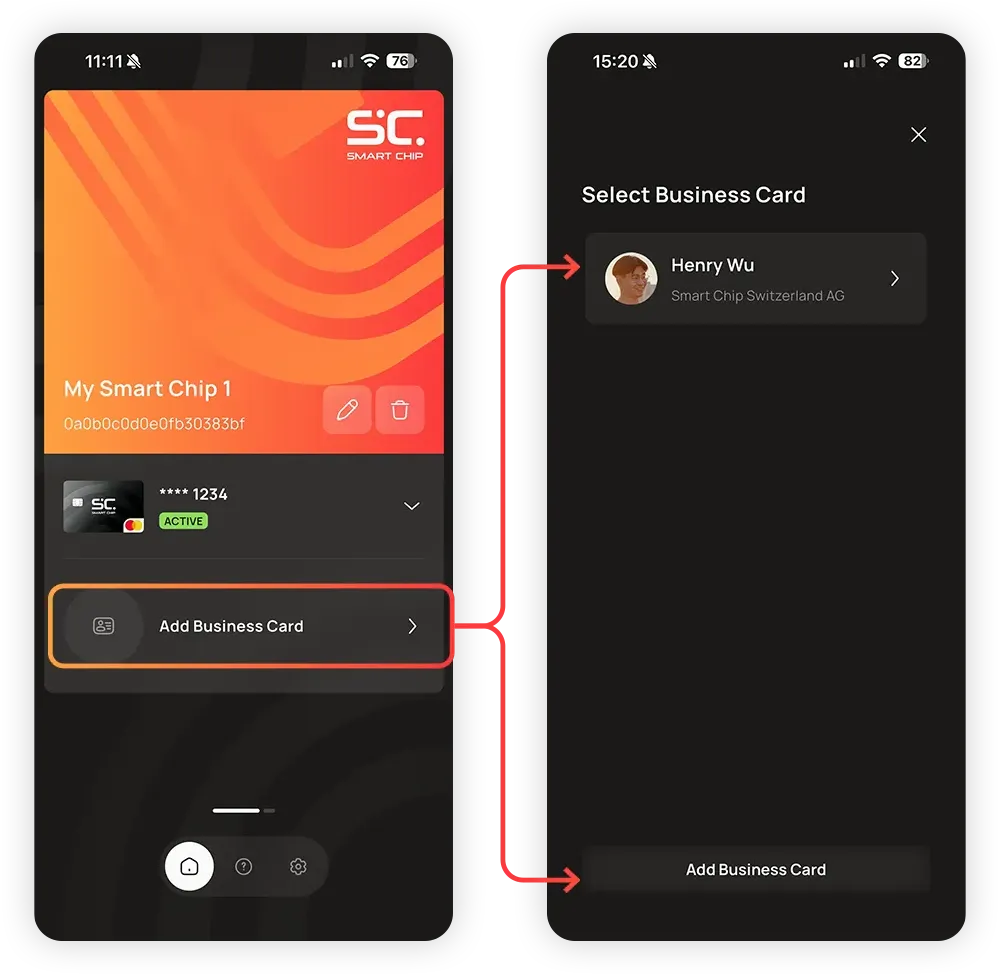
Tap Add Business Card on the home screen.
You will see a list of previously added business cards. Tap Add Business Card to create a new one.
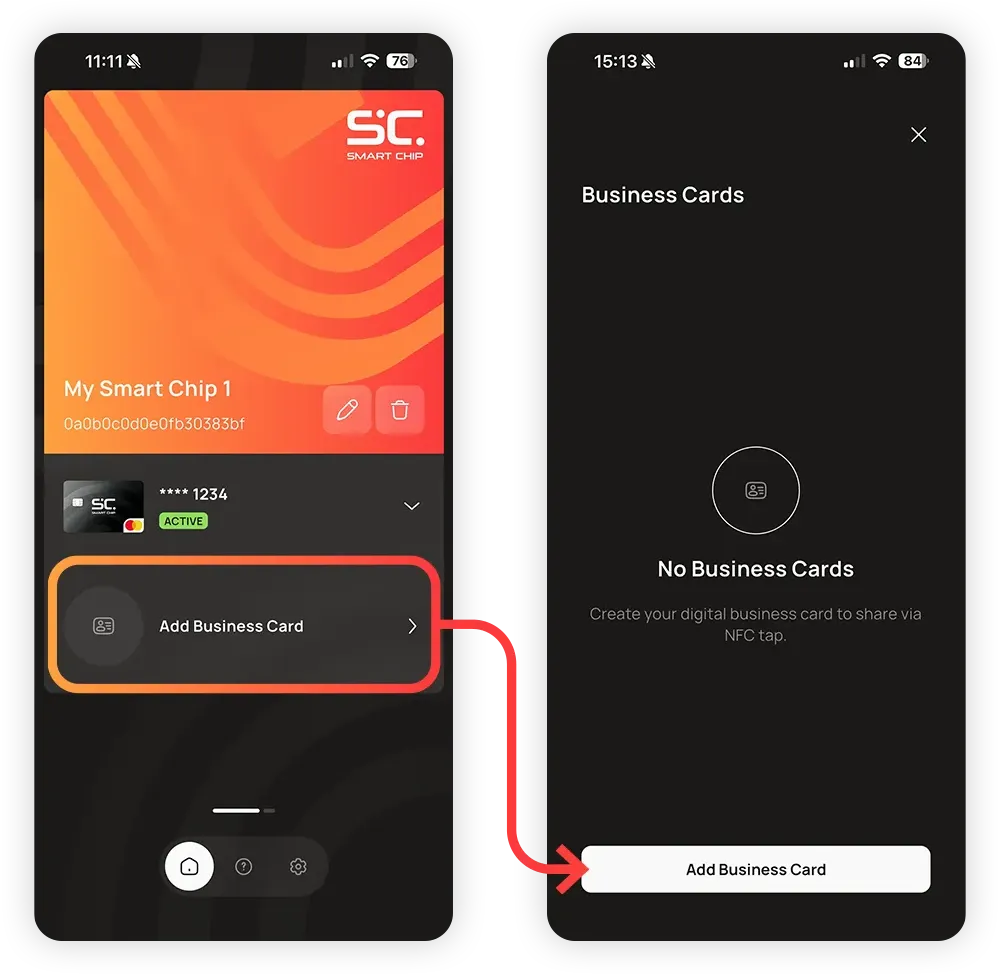
1.4
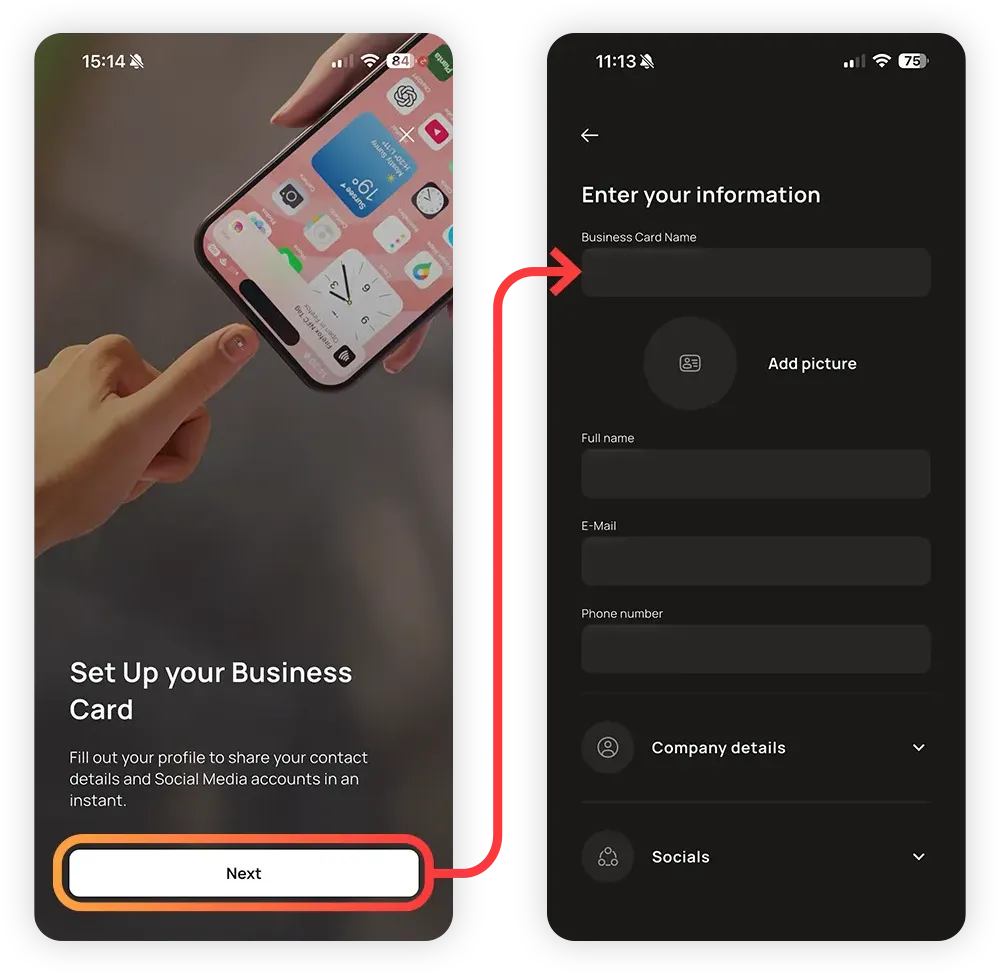
Tap Next to get to the business card.
1.4
Fill out everything you want to share.
After you’re done, scroll to the bottom and hit Save.
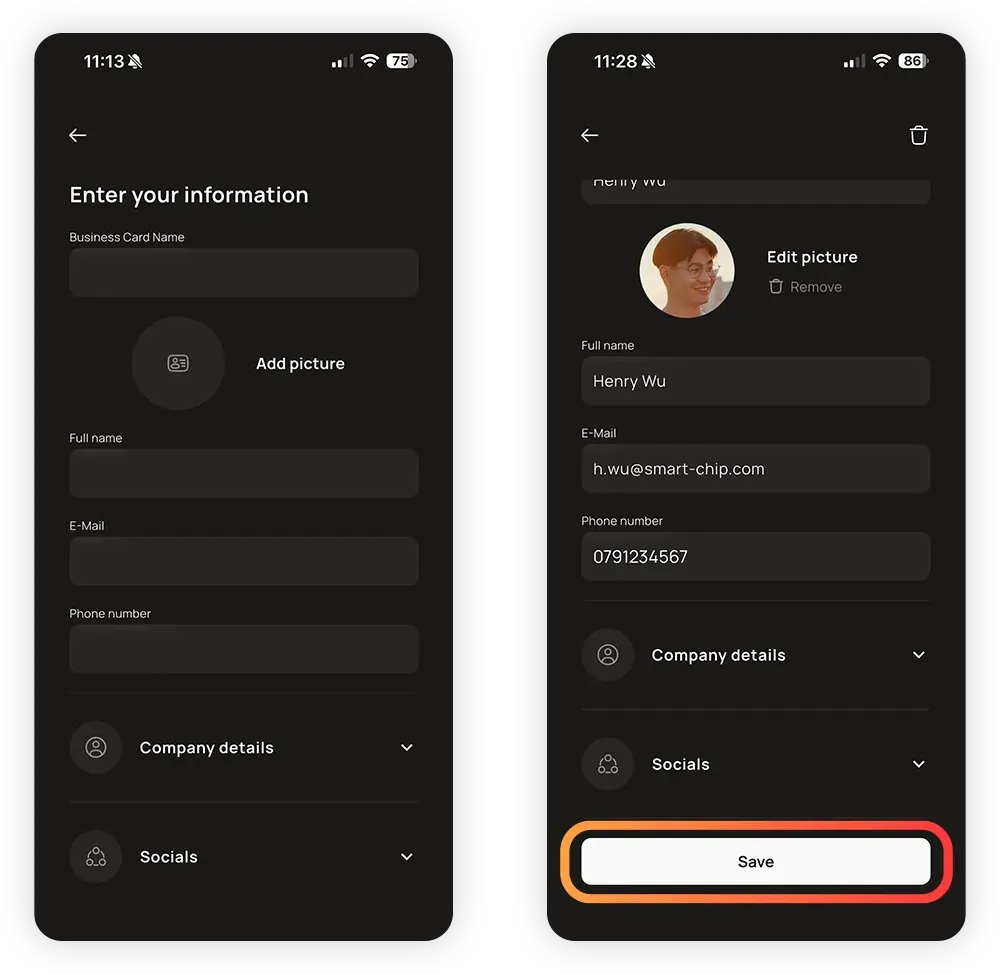
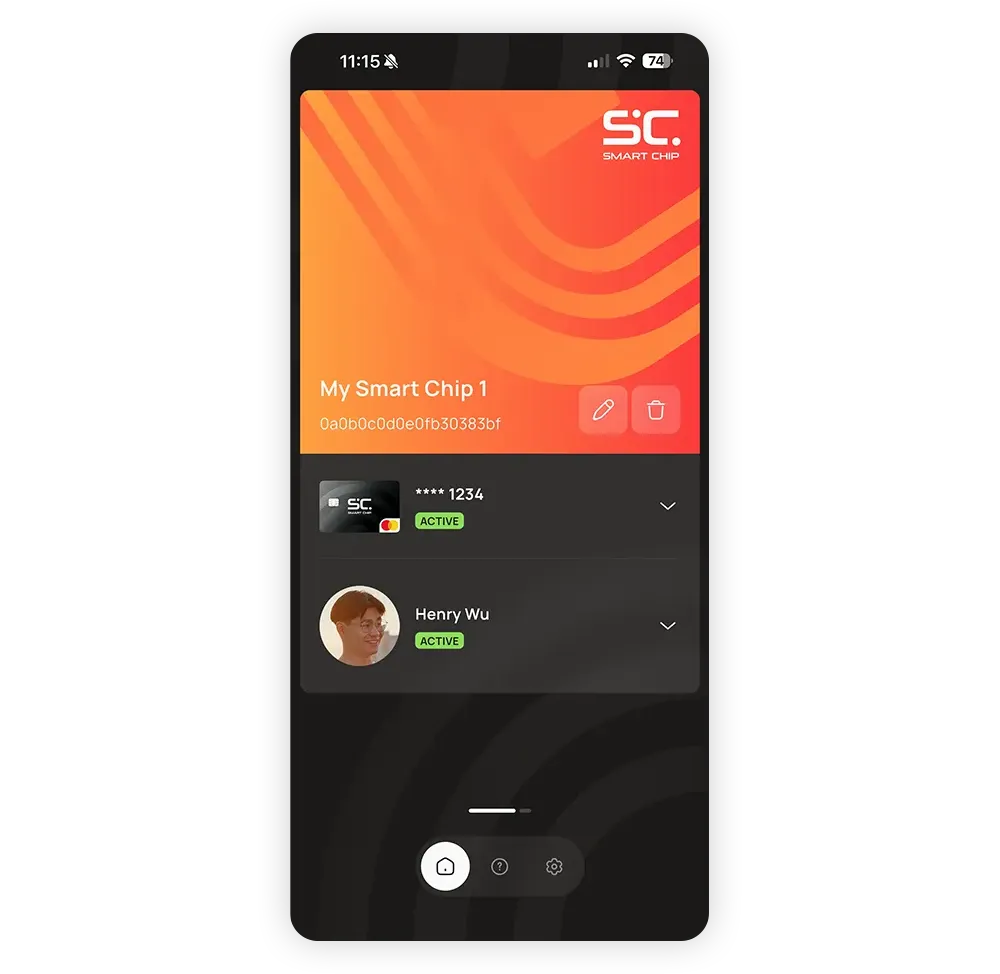
Your business card is now active on your Smart Chip and ready to share.
Simply hold your finger to the NFC reader of a phone to share your details.
1.4
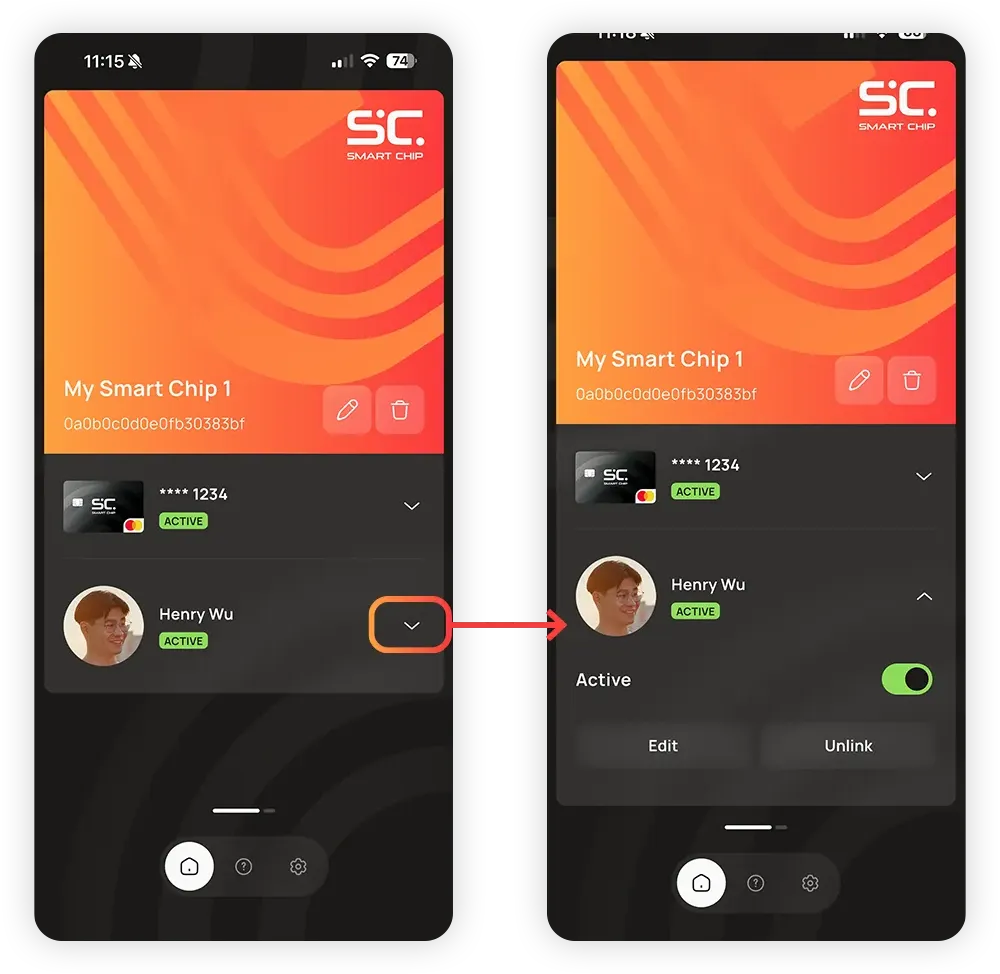
Like the payment card, the active business card is shown on the home screen. Tap the arrow for more settings:
Active: Here, the business card can be temporarily deactivated.
Edit: To change, add, or delete individual entries on the active card.
Unlink: This disconnects the business card from the Smart Chip. The business card or another card can be reconnected at any time.
1.4
When the business card is disconnected, the business card field on the home screen will be empty again. If you tap Add Business Card, you will return to the list of business cards. Here you can select an existing one or create a new one with Add Business Card.
This is useful if, for example, you want to have a professional and a personal business card.
1.5
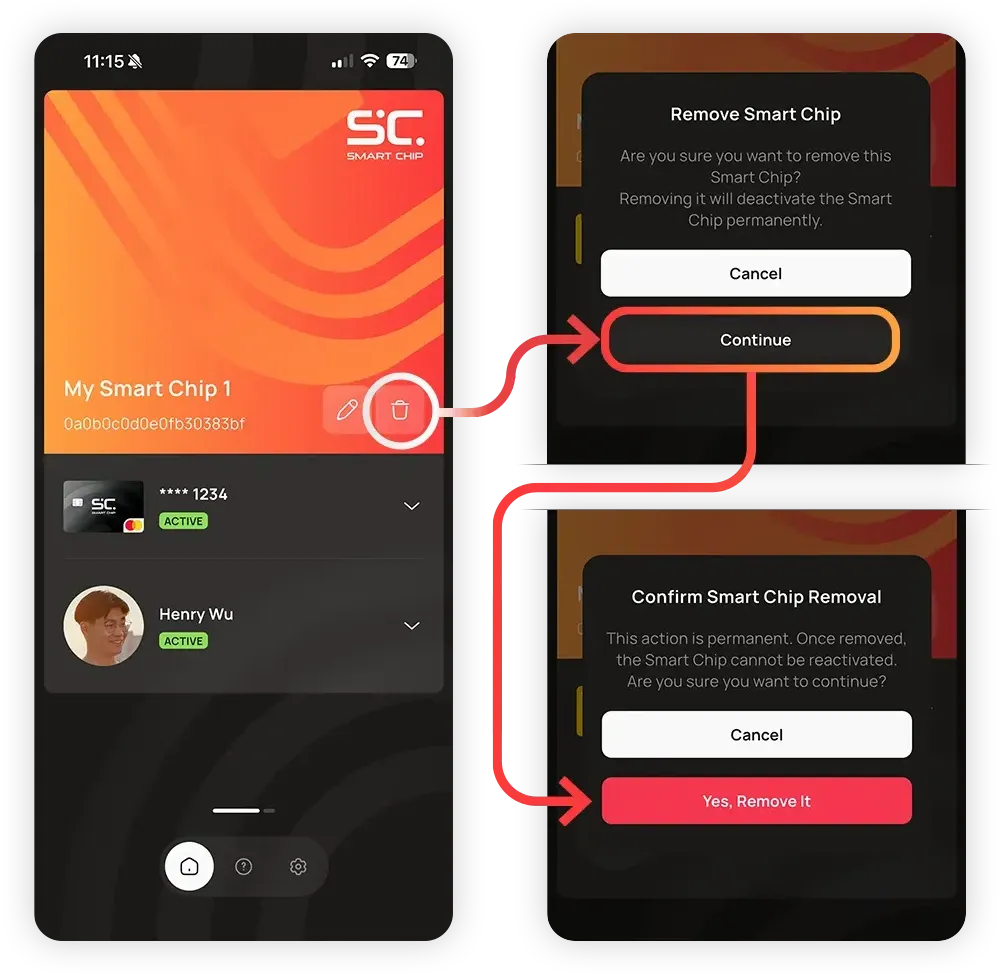
Tap the recycle bin icon to delete the Smart Chip from your account.
 English English
  Deutsch
 Español
 Français
 Italiano
 Português
 Čeština
 Polski
 Svenska